You’ve probably read this instruction quite a few times in online tutorials
about installing command-line tools. What is this PATH for? Why should we
add directories “to” it? This is the subject of this post.
How the Shell Finds Executables
When you type something like ls, your shell has to find what is this ls
program you’re trying to run. Typical shells only have a handful predefined
commands like cd; most of the commands you use everyday are standalone
programs.
In order to find that ls program; your shell looks in a few directories.
Those directories are stored in an environment variable called PATH; you can
look up its value in most shells using the following command:
You can see it contains a list of paths separated by colons. Finding a program
in these is just a matter of checking each directory to see if it contains an
executable with the given name. This lookup is implemented by the which
program. The algorithm is pretty simple and goes like this:
cmd = "ls"
for directory in $PATH.split(":") {
    candidate = $directory/$cmd ;
    if candidate exists and is executable {
        return candidate ;
    }
}
This is pseudo-code, but there are implementations in various languages:
C, Go, Ruby, Dart, etc.
As you can see, the order of these directories matters because the first
matching candidate is used. That means if you have a custom ls program in
/my/path, putting /my/path at the beginning of the PATH variable will
cause ls to always refer to your version instead of e.g. /bin/ls because
/bin appears after /my/path.
You can perform this lookup using the which command. Add -a to get all
matching executables in the order in which they’re found. This is what
which python gives on my machine:
$ which python
/usr/local/bin/python

$ which -a python
/usr/local/bin/python
/usr/bin/python
You can see I have two python’s but the shell picks the one in
/usr/local/bin instead of /usr/bin because it appears first in my PATH.
You can bypass this lookup by giving a path to your executable. This is why
you run executables in the current directory by prefixing them with ./:
This tells the shell you want to run the program called my-program in the
current directory. It won’t search in the PATH for it. It also works with
absolute paths. The following command runs my python in /usr/bin regardless
of what’s in my PATH variable:
For performance reasons a shell like Bash won’t look executables up all the
time. It’ll cache the information for the current session and will hence do
this lookup only once per command. This is why you must reload your shell to
have your PATH modifications taken into account. You can force Bash to clear
its current cache with the hash builtin:
Now that we know how our shell find executables; let’s see how this PATH
variable is populated.
Where Does That PATH Come From?
This part depends on both your shell and your operating system. Bash reads
/etc/profile when it starts. It contains some setup instructions, including
initial values for the PATH variable. On macOS, it executes
/usr/libexec/path_helper which in turns looks in /etc/paths for the initial
paths.
The file looks like this on my machine:
$ cat /etc/paths
/usr/bin
/bin
/usr/sbin
/sbin
The actual code to set the PATH variable (or any variable for that matter) in
Bash is below:
PATH="/one/directory:/another/directory:/another/one"
By default, Bash doesn’t pass its variables to the child processes. That is, if
you set a variable in Bash then try to use it in a program it’ll fail:
$ myvar=foo
$ ruby -e 'puts ENV["myvar"] || "nope :("'
nope :(
Bash allows one to mark a variable as exported to subprocesses with the export builtin command:
$ myvar=foo
$ export myvar
$ ruby -e 'puts ENV["myvar"] || "nope :("'
foo
This is usually done when setting the variable:
$ export myvar=foo
$ ruby -e 'puts ENV["myvar"] || "nope :("'
foo
Technically Bash doesn’t need you to export the PATH variable to use it but
it’s better if for example a program you use executes another program; in this
case the former must be able to find the latter using the correct PATH.
How Do We Modify It?
Each shell has its own file in the user directory to allow per-user setup
scripts. For Bash, it’s ~/.bash_profile, which often sources ~/.bashrc.
You can use this file to override the default PATH. It’ll be loaded when
starting a session; meaning you have to either reload your shell either
re-source this file after modifying it.
We saw in the previous section how to set the PATH variable; but most of the
time we don’t want to manually set the whole directories list; we only want to
modify its value to add our own directories.
We won’t dive into the details in that post, but Bash has a syntax to get the
value of a variable by prefixing it with a dollar symbol:
echo myvar  # prints "myvar"
echo $myvar # prints "foo", i.e. myvar's value
Bash also supports string interpolation using double quotes: You can include
the value of a variable in a double-quotes string by just writing $ followed
by its name:
echo "hello I'm $myvar" # prints "hello I'm foo"
We use this feature to append or prepend directories to the PATH variable:
prepending means setting the PATH’s value to that directory followed by a
colon followed by the previous PATH’s value:
PATH="/my/directory:$PATH"
You usually don’t need to re-mark this variable as exported but using export
at the beginning of the command doesn’t hurt.
Wrapping Things Up
Modifying the PATH is not something we do very often because most tools are
installed in standard locations—already in our PATH. Most package managers
install executables in their own location and need the user to modify their
PATH. Homebrew, for example, installs them under /usr/local/bin and
/usr/local/sbin by default. If those are not already in the PATH, one needs
to add them:
# In e.g. ~/.bash_profile
export PATH="/usr/local/bin:/usr/local/sbin:$PATH"
This means the shell will first look in these directories for executables. It
allows one to “override” existing tools with more up-to-date ones.
•
This post title sounds like a spam email subject but I was asked twice in the
past three weeks where I buy my t-shirts, so here’s an answer that everybody
can benefit from.
Living in Europe means we can get quite high shipping costs on US-based
websites. The highest shipping cost per t-shirt I ever got was $23 for two
t-shirts and on some websites up to 40% of the total cost is due to shipping.
The main criteria I have when buying t-shirts online are:
- Their price. I very rarely buy t-shirts that are more expensive than $20-25.
The reason is I like to buy multiple t-shirts at once and having to pay $100
for four t-shirts plus shipping isn’t something I’d consider.
- The quality of their design. Of course if all you want is a unicolor t-shirt
you can go to virtually any clothing store in the street to get one.
- Their shipping costs and how much time I’ll have to wait (spoiler: at the
very least a couple weeks if it comes from the US).
A bonus point is if they accept Paypal. This is because Paypal does the
Euro/Dollar conversion for me; otherwise if I pay with my credit card in
Dollars my bank steals takes me ~1% of the price, or €1 if it’s lower
than €100.
Not-that-fun story: I once had to pay a $0.02 AWS bill. It cost me €1.02; €1
for my bank and ~€0.02 for AWS.
Note that I’m not affiliated with any of the websites listed in this post and I
bought one or more times on each one.
Threadless
Threadless is the first website I ordered shirts
on; back in 2009. They have a large choice of t-shirts; you have to really dig
to find geeky ones. A lot of them are as low as $10-12 and they have promos
where shirts can go as low as $5. All the ones I bought in 2009 are still in
perfect condition. The shipping costs are acceptable at ~30% of the total cost
(e.g. 5 t-shirts for $45 + $27 for shipping = $72) but I need at least a month
to receive my package.
Pluses: Large choice, good prices.
Minuses: YMMV but I need to dig a lot to find t-shirts I like.
6 Dollar Shirts
I don’t remember how I found 6 Dollar Shirts but
it was quite a pleasant surprise to see a website that sells shirts at $6 each.
They even have a special price at $50 for ten of them. They have a lot more
geeky shirts and ones with references to popular culture. There are also a lot
of political t-shirts that I’m not interested in — but again you may like them.
The downside of the site are the high shipping costs: $35 for ten shirts. But
given their shirt prices it stays very low: $50+$35 for ten t-shirts means only
$8.5 per t-shirt. The first ones I bought in 2013 are still in pretty good
shape. They’re not as good as Threadless’ but they’re really good for their
price.
Pluses: Prices, and some designs are really great.
Minuses: After ~20 t-shirts I find it hard to find enough nice shirts to
fill another 10-shirts bulk.
Teespring
Teespring is a time-limited t-shirts website. People
submit their design and if there are enough buyers before a few days it goes to
print. It’s not a site I often go on but it seems to be popular for when people
want to print a special-occasion shirt.
I bought two shirts from them in 2014; each one cost $18 plus $12 of shipping
cost. That’s quite high, which is why I don’t often visit their website.
Pluses: Some shirts are nice.
Minuses: Prices are high and there’s not a lot of choice.
Cotton Bureau
Cotton Bureau is similar to Teespring but with
higher prices and goals appears to be higher than Teespring so less t-shirts go
to print. They do have nice shirts, thought.
Last time I bought a t-shirt from them was on October 31 of this year. I picked
a Mystery Tee as well, which is a cheaper shirt they choose for you. They
should ship on November 28 so I should get them for Christmas — That’s a long
time to wait. I paid $25 for the t-shirt I chose; $15 for the Mystery one; and
$24 for the shipping. You have to really want that t-shirt to pay that much.
Pluses: Nice designs and if enough people subscribe to an already-printed
t-shirt it goes to print again.
Minuses: Quite expensive and you have to wait until the end of the buying
window to have it printed and shipped.
Redbubble
Redbubble is a marketplace that sells a lot of
stuff with designs from a lot of people.
They have a lot of choice but in my experience the quality of their designs is
lower than Threadless’ and 6 Dollar Shirts’. They even sometimes have
duplicated or copied designs: two or three people got the same idea and
submitted (almost) the same design.
The positive side of this is you’ll often find t-shirts that refer to current
TV series that don’t have official stores (unlike CBS’ series), for example this Bojack-Horseman-themed shirt.
Their shipping costs are pretty low; I paid only €2.5 to get my €21 t-shirt.
Pluses: Low shipping costs and some nice finds if you search a lot.
Minuses: A lot of not-so-original designs that make it harder to find the
good ones.
TeeFury
TeeFury is a daily t-shirt website. They have two
shirts featured for a day at $11; otherwise you have to pay the full price
($20). I’m not a huge fan of their designs but they have very low shipping
costs; only $3 for a $11 t-shirt.
Pluses: They’re the cheapest option of this list when you buy only one or
two t-shirts at once.
Minuses: Only two t-shirts per day.
I hope this post may help you buy (cheap) t-shirts online. Note the shipping
costs I gave were for me in France; they may vary depending on your location.
Please share your own recommendations in the comments!
•
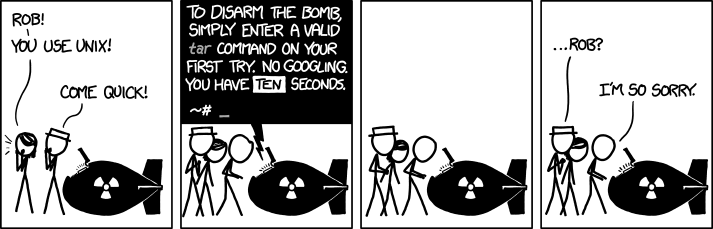
For a lot of people, the GNU tar command’s options seem obscure and hard to
use. The most common ones exist only in a short form and always appear grouped
in the same order and often without a leading hyphen, e.g. tar xzvf
archive.tgz and not tar -v -z -x -f archive.tgz. Additionally, tar doesn’t
work without any “option”.
These options, or rather these commands, can be seen as a (small) language that
you can learn to speak, write or read. Each command has its own
meaning that sometimes depend on which other commands are used with it.
The Grammar
tar’s sentences start with a verb. There’s no subject, because you’re giving
an order to tar. This verb is followed by zero or more modifiers that give
more context to the action. The last part is the object(s) on which the action
is made. Spaces are not needed between tar’s words because they all consist
of one letter.
Actions
The two most common actions are “create” (c) and “extract”
(x). The first one is used to create an archive from some files; and the
second is used to extract that archive in order to get back those files.
All tar implementations support one more action: “list” (t) to
list an archive’s content without extracting it. Some implementations support
two variants of “create” that are “append” (r) and “update”
(u). The former appends files to an existing archive; the latter updates
files in the archive for which there exist a more recent version.
Unfortunately we now know all tar actions but can’t do much without knowing
how to apply them to an object. Let’s dive into objects and we’ll see the
modifiers later.
Objects
tar has a very limited set of objects: archives. Each tar command operates
on one archive, that is given by f (for “file”) followed by its path.
Files added or extracted from archives are simply given as extra arguments to
these commands without needing any special word.
We’re now ready to write our first meaningful sentences.
“Hey tar, please create an archive file foo.tar with file1
and file2” is written as tar cf foo.tar file1 file2.
“Extract archive file foo.tar” is written as tar xf foo.tar.
“List archive file foo.tar” is written as tar tf foo.tar. You get
the idea.
Note that actions like “extract” or “list” accept additional
arguments for the file patterns you want to extract/list. Say you have a big
archive from which you only want to extract one important.txt file. Just give
this information to tar and it’ll kindly extract it for you:
tar xf big-archive.tar important.txt
You might wonder what is this “file” word for if we always need it.
Well, we can remove it. But if we do so, our tar command doesn’t have any
object left, so it’ll look at something else: STDIN or STDOUT.
Actions that read archives operate on STDIN if you don’t give them a
file object:
cat big-archive.tar | tar x important.txt
You can also be explicit by giving - to f:
cat big-archive.tar | tar xf - important.txt
The “create” action will output the archive on STDOUT if you don’t
give it a name (or use f -). You still need to give it the name of the files
to put in that archive:
tar c file1 file2 > archive.tar
# Same, but more explicit
tar cf - file1 file2 > archive.tar
Note that you can’t extract an archive to STDOUT without a modifier.
tar operates on files, not on data streams. By default it doesn’t compress
its content so creating a tar archive for one file doesn’t make much
sense.
Now that we know how to write basic sentences, let’s add some modifiers to
them.
Modifiers
In my experience the most used modifiers are v and z. The first one is the
“verbose” flag and makes tar more chatty. When creating or
extracting an archive it’ll print each file’s name as it’s (un)archiving
it. When listing an archive it’ll print more info about each file.
Compare both outputs below:
$ tar tf archive.tar
file1
file2
$ tar tvf archive.tar
-rw-r--r--  0 baptiste wheel   31425 18 sep 14:51 file1
-rw-r--r--  0 baptiste wheel   18410 18 sep 14:51 file2
The v modifier can be combined with any other one mentioned below.
z will tell tar to use Gzip to (de)compress the archive. Nowadays
tar-ing with no compression is rarely used, and Gzip is ubiquitous. Just add
z to your modifiers and tar will create compressed archive and
extract them. The convention is to use .tar.gz or .tgz for such
archives:
tar czf archive.tar.gz file1 file2
# Later…
tar xzf archive.tar.gz
Other common modifiers include j that works exactly like z but (de)compress
using Bzip2 instead of Gzip. Such archives usually end with .tar.bz2 or
.tbz2. It’s not named b or B because those were already taken when
this modifier was introduced.
Similarly to j one can use its capital friend, J. This one compresses using
xz instead of the last Gzip or Bzip2. These archives use the extensions
.tar.xz or .txz.
Note you can also (de)compress archives by yourself if you don’t remember these
modifiers:
tar cf myarchive.tar file1 file2
gzip myarchive.tar
# Later…
gunzip myarchive.tar
tar xf myarchive.tar
There is a dozen of other modifiers you can find in the manpage, but let’s
mention two more: O and k. You may remember from the first section that I
wrote you can’t extract an archive to STDOUT without a modifier. Well,
that modifier is called O:
Using O when extracting will print the content of the archive on
STDOUT. This is the same output as you would get by calling cat on all the
files in it.
The last modifier I wanted to mention is k, which tells tar not to override
existing files when extracting an archive. That is, if you already have
a file called important.txt in your directory and you un-tar an archive
using the k modifier, you can be sure it won’t override your existing
important.txt file.
I hope this post helped you have a better understanding of tar commands, and
how they’re not that complicated. I put a few (valid) commands below, just so
you can see if you understand what’s they’re doing:
tar xf foo.tar
tar cvzf bar.tar a b c
tar tvf foo.tar important.txt
tar cz file1 file2 > somefile
tar xzOf somefile
tar cJf hey.txz you andyou
tar xkjvf onemore.tbz2
•